Early preview · v0.4.0 · Ubuntu & Windows (WSL)

A new way to build
a desktop

Starling draws the whole Linux desktop as one native program — the dock, the menus and every window are widgets in a single app. Sixty thousand lines, six months, one person directing AI.

Four minutes, one take — recorded by the desktop's own screen recorder. The App Store really installs Chrome and VS Code.

Why it's different

What one program buys you

Fast, native, small

Every pixel is drawn by compiled code on the GPU — no CSS, no JavaScript, no browser engine in the rendering path. The whole desktop keeps a small memory footprint.

Your apps just work

Chrome, Zoom and VS Code run out of the box. Starling speaks both Wayland and X11 natively — no XWayland layer, no manual setup.

Built for AI agents

Agents get a dedicated workspace, fully separated from your desktop. An agent can only operate on the apps it opened itself — it can't touch, or even see, yours.

One desktop, more than one look

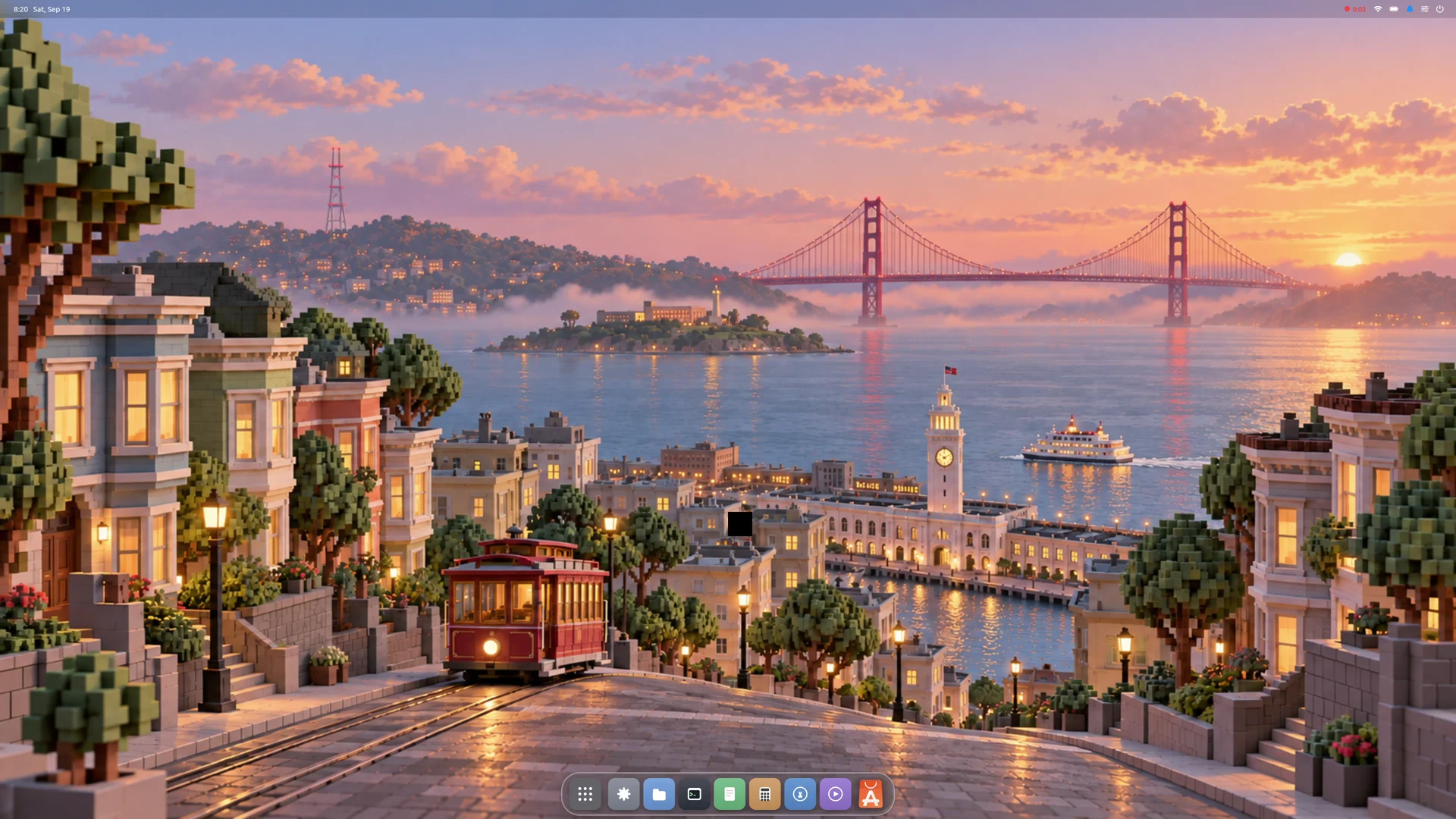
Settings → Appearance → Desktop Style. Two today: the macOS one above, and a Windows 11 one. The desktop rebuilds into your choice and remembers it.

It changes shape, not just colour. The menu bar goes; the taskbar takes the full width and reserves its strip, so a maximised window stops above it instead of sliding under. Start opens as a panel. Window buttons move right and become the caption trio. Hovering a taskbar tile shows a live preview of that window — the real thing, still updating.

The first-party apps follow the style too. Adding a third one is a single file.

The Starling desktop in its Windows style: the Files window with minimise, maximise and close buttons at the top right, the Start panel open above a full-width taskbar with centred icons, and pinned apps including Chrome, VS Code, Zoom and Blender.
The same desktop, same session, in the Windows style.
The idea

One program, all the way down

A desktop is normally a committee of programs negotiating over protocols. Starling is one program: the dock, the menu bar and every window — even Chrome — are widgets in a single tree.

Windows become widgets. Management becomes layout. Effects become animation.

Agent workspace mode — watch it work, step in anytime

An agent drives down the middle, and every app it opens — an editor, a browser — lands as a live tab beside it, not on top of your work. You can watch every move it makes and intervene the moment you need to: its windows are real apps, yours to click.

Watch it happen — an agent builds and ships a page in its own room. 3½ minutes, narrated.
Curious?

How one program replaces four

The architecture, the AI process, and the rest of the engineering story.

How it's built →
The size of it

A desktop you could read in a weekend

Every number can be checked in a public repository.

24,431
Lines of code — the desktop itself: windows, dock, menus, effects
6,935
Lines of C — the Wayland server, how modern apps connect
5,712
Lines of C — the X11 server, how older apps connect
13,407
Lines of code — nine apps that ship with it

Plus a 7,500-line layer that drives the display hardware: about 60,000 lines all told, built on a 211,000-line translation of Flutter into Swift. Desktop and engine are both public.

Why it matters

A desktop one person could actually build

For thirty years, a Linux desktop has been the work of institutions. Starling took one person directing AI, six months — without cutting scope: it drives the GPU, runs Chrome and Zoom, survives a monitor being unplugged.

This is the time to build.
On Windows

You don't need a Linux machine

It runs on Windows, through WSL

Install WSL, install the same .deb inside it, and connect with any RDP client — Windows' own Remote Desktop will do. The whole desktop comes up: the shell, the taskbar, the apps, the file manager, the terminal.

WSL has no graphics device at all, so the desktop takes a different path entirely: the remote screen becomes the display. Nothing is being mirrored to you — the desktop is drawn into the RDP surface in the first place, so what you connect to is the real thing rather than a copy of it.

The same path serves any headless Linux box: a machine in a cupboard with no monitor runs the full desktop and you connect to it.

Install to connected, end to end. 2½ minutes on a real Windows machine.
Install

One package, then pick Starling at login

Download Starling 0.4.0 (.deb, 51 MB) ↓
# Ubuntu 26.04 LTS, amd64. Starling needs a Wayland-capable login
# manager. Ubuntu Desktop already has one (GDM); on Server or a minimal
# install, add it first:
sudo apt install gdm3

# Download and install Starling with its runtime dependencies:
curl -fLO https://github.com/starling-build/starling/releases/download/v0.4.0/starling_0.4.0_amd64.deb
sudo apt install ./starling_0.4.0_amd64.deb

# Log out (or reboot). At the login screen click your name, open the
# session menu (the gear / lower-corner button), pick "Starling", sign in.
Early preview. Expect rough edges. Verified on AMD graphics under a fresh Ubuntu 26.04.

On Windows, inside WSL

# In your WSL distro (Ubuntu 26.04). No login manager and no GPU needed —
# the remote screen is the display.
curl -fLO https://github.com/starling-build/starling/releases/download/v0.4.0/starling_0.4.0_amd64.deb
sudo apt install ./starling_0.4.0_amd64.deb
starling-session

# It prints where to connect. From Windows:
mstsc /v:localhost:3390
Port 3390, not 3389. Windows' own Remote Desktop listens on 3389 and WSL forwards localhost both ways, so 3389 would reach your PC instead of Starling.

Testing virtually? Use a VM, not a container — the Ubuntu path needs a real GPU device. Once it's running, the User Guide walks you through the desktop.